Someone holds out a paper card. You already have a QR code on your phone. Neither of you is doing it wrong.
A digital business card QR code is how you share your details. A paper business card scanner is how you capture theirs when they still hand you a printed card. The two jobs point in opposite directions, which is why “QR versus scanner” is usually the wrong question.
This guide compares the two, then walks through a dual workflow you can run on iPhone. We make Carte, an app that does both. It appears here as one way to run that workflow, not as the only one.
Key takeaways
- Sharing your card and saving theirs are different jobs. A QR digital card helps with the first. A paper scanner helps with the second.
- Your iPhone can already scan a QR code with Camera or Control Center. Open Camera, frame the code in Photo mode, then tap the link that appears (Apple Support).
- Many rooms are still mixed, and a QR that opens your profile is not the same as a lead-capture form.
- For the paper side, see How to scan a business card on iPhone and Live Text vs a business card scanner. For a wider app shortlist, see CamCard alternatives for iPhone.

Two different jobs: share yours, capture theirs

You want the other person to leave with your name, number, and a reason to write back. That is sharing. A digital business card, usually reached by a QR code, is built for that direction.
You also want their details in a place you can find again, with a note about where you met. That is capture. A paper card scanner is built for that direction, when what they give you is still a printed card.
99Forward’s comparison (published 31 October 2026) puts it cleanly: a QR code is access, a digital business card is the profile behind that access, and a scanner is capture. The code is not automatically the card. It is often just the door.
If you only buy a tool for one of those jobs, the other side of the handshake is still improvised.
What a QR digital business card does (and what it does not)
A digital business card is a profile you control: name, role, company, phone, email, and sometimes a website or other links. The QR code is how someone reaches it in the room, without typing a URL. Update the profile once, and the next person who scans can see the current details, as long as the code still points there. It does not turn their paper card into a contact, and it does not follow up for you.
How the other person scans it on iPhone
They do not need your app. Apple documents a built-in path: open Camera, hold the phone so the QR code sits in the frame in Photo mode, then tap the link that appears and open the content (Scan a QR code with your iPhone or iPad; iPhone User Guide). You can also add Scan Code to Control Center, and use the flashlight in a dim aisle.
What they see next depends on what the code contains: a contact page, a profile, a website, or a form. Apple describes this as opening the content, not as a guaranteed one-tap save into Contacts. If the code opens a web profile, a dead venue connection can stall the share even when your screen looks fine.
When a QR share gets awkward
A QR code is only as smooth as the other person’s phone, lighting, and patience. In a bright hall or a two-minute goodbye, asking someone to unlock, open Camera, and wait for a link can feel slower than sliding a printed card across the table. Some rooms still expect paper. A digital card is useful as a backup, or as the thing you send later, but it is a poor substitute if you insist everyone scan you.
Several cards for several roles
If you have a day job and freelance work, one QR profile can be the wrong card for the conversation. Carte lets you create a digital contact card and have someone scan your QR code. The free plan includes 1 QR card; Carte Premium supports up to 10 QR cards for different roles. The Premium limit is on the App Store listing and the Carte home page. Pick the card that matches the conversation, then put it away.
Faster ways to show your card
Hunting through an app mid-conversation is the part that makes a QR share feel fussier than paper. Carte 2.1, on the App Store listing checked 11 November 2026, adds shorter paths: ask Siri to show your QR card, or share your card from a Home Screen widget or your Apple Watch. The other person still scans the code with their own camera. It just gets your card on screen without a scavenger hunt.
What a paper card scanner does
Now flip the direction. They hand you paper.
A scanner’s job is to turn that card into contact details you can review and use: name, phone, email, title, company. The better ones also keep a photo of the card, a note about where you met, and a reminder to follow up, then export to Apple Contacts, CSV, or vCard if the record needs to leave the app.
Apple’s own tools can cover a card or two. Live Text can read text on a card and sometimes offer Add to Contacts for a detected number or email, after which you finish the record yourself. Notes or Files can save a document image. That path is real, and it is not a full-card scanner. See How to scan a business card on iPhone and Live Text vs a business card scanner.
A dedicated scanner is for volume and context: a stack after a conference, several cards in one photo, a queue when the hall has no signal, then a quiet review later. Recognition still varies with layout, lighting, and language, so check the fields before you trust them. For an app shortlist, see CamCard alternatives for iPhone.
Don’t confuse a personal QR card with a lead-capture form
Some “QR versus scanner” articles are not really about digital business cards.
Leadpocket’s comparison (23 June 2026) describes a different flow: you show a code, and the other person types their own details into a form, sometimes with extra qualifying questions. That can be a good booth setup. It is not the same job as showing your own digital card so they can save you.
A personal QR card sends your profile outward. A lead-capture form pulls their answers inward. A paper scanner reads a card they already printed. Use the form, the personal QR, or the scanner for the job you actually have.
Side-by-side
| Job | QR digital business card | Paper card scanner | Lead-capture QR form |
|---|---|---|---|
| Direction | You share your details | You capture theirs from paper | They type their details to you |
| What the other person does | Scan your code with Camera | Hands you a printed card | Scans, then fills a form |
| Works if they have no paper card | Yes | No | Yes, if they have a phone |
| Works if they will not scan | Weak; keep a printed backup | Yes | Weak |
| Needs a network | Often, if the code opens a web profile | App-dependent; some tools can queue offline | Usually yes |
| Meeting context and follow-up | Only if you keep that elsewhere | Often built in, app-dependent | Often built into the lead tool |
None of these wins every room. The useful setup is the one that can accept whatever the other person offers.
Why mixed rooms still need both
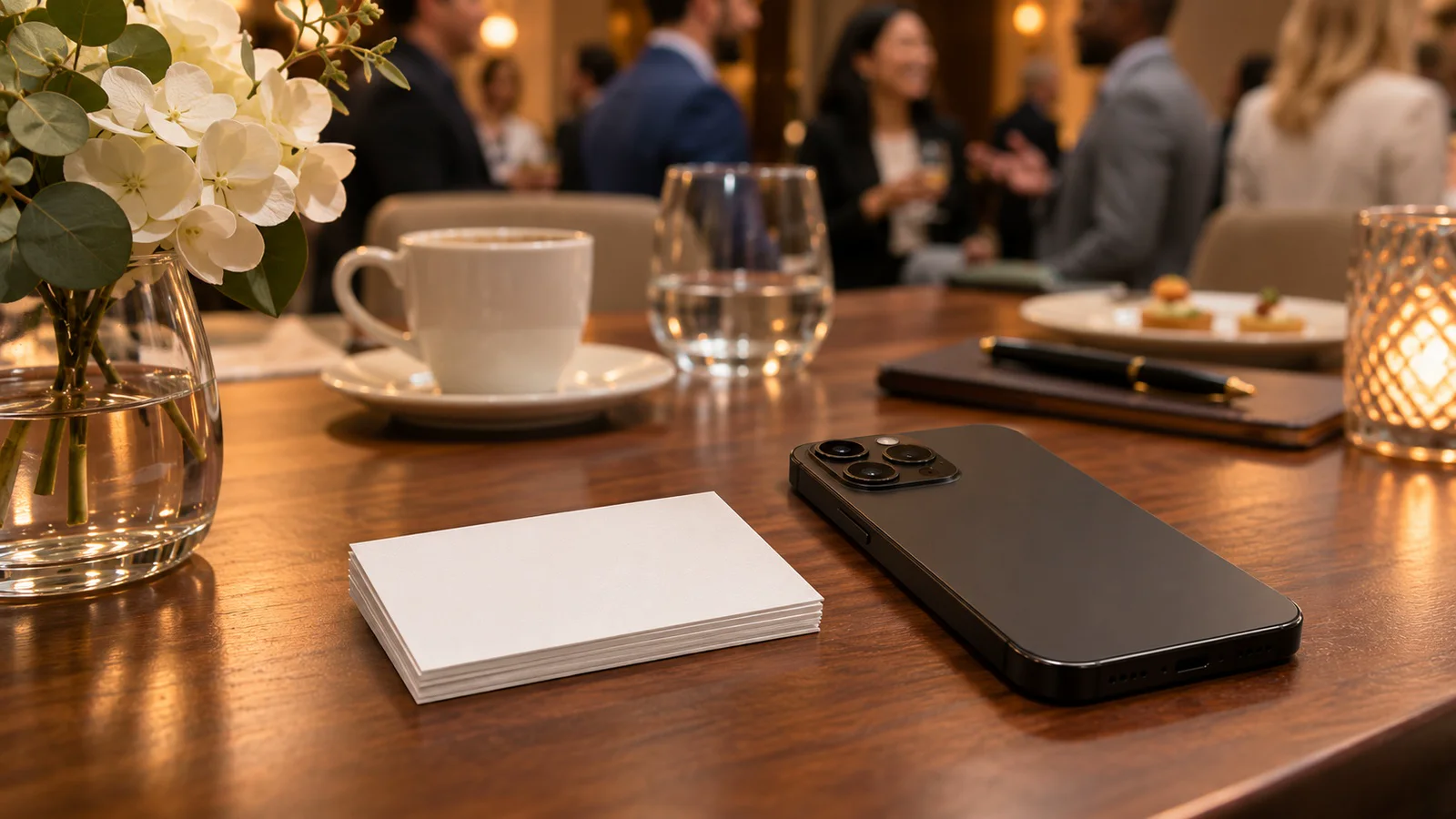
You do not control the format they bring. Habsy (6 November 2025) frames digital card apps as a way to share your information, and scanner apps as a way to capture what you receive. A digital card would only replace a scanner if everyone you met had also stopped using printed cards. That has not happened.
The reverse is also true. A scanner will not introduce you. If you only collect their cards and have no simple way to leave your details behind, you have done half the hello. The leftover pile on your desk is not proof that QR failed. It usually means the room was mixed, and only one side of your workflow was ready.
A dual workflow you can run on iPhone

Before the event. Set up the digital card you actually want to share. If you have more than one role, prepare the matching QR cards in advance. Put the one you will need first somewhere you can reach quickly, such as a Home Screen widget, or be ready to share it from Apple Watch or by asking Siri to show your QR card, if you use Carte 2.1. If you still carry printed cards, a QR on the paper card can point at the same profile.
In the room. When they ask for your details, show the QR and let them scan it with Camera. If the lighting is bad or they do not want to scan, hand over paper and move on. When they hand you a card, capture it then or queue the photo if the venue has no signal. For a hall with weak signal, see Scanning business cards at a trade show with no signal.
Right after, or that evening. Review the scanned fields, keep a short note about where you met and what you promised, and set a follow-up reminder while the conversation is still specific. If you use Carte, those notes, the meeting location or event, and the reminder sit beside the person. Export to Apple Contacts, CSV, or vCard when the records also need to live somewhere else.
The follow-up is still on you. A clean share and a clean scan only get you to a message you still have to send. For the first week after a conference, see the after-conference checklist.
How to choose
If you mostly need a current way to hand over your own details, start with a digital business card and a QR people can scan with Camera. If you leave events with a pocket of paper, you still need a scanner, or Apple’s tools for one or two cards. If your week looks like both, run the dual workflow. If you are staffing a booth and want people to type into a form, that is a lead-capture QR, not a personal digital card.
If you want a single iPhone app that covers your QR card and the paper you collect, Carte is built around that pair. It is our product. Confirm live details on the App Store listing.
About Carte
Carte is a business card scanner for iPhone (version 2.1). It requires iOS 17.0 or later, iPadOS 17.0 or later on iPad, and watchOS 10.0 or later on Apple Watch, as shown on the App Store listing on 11 November 2026.
You can scan one card or a stack, queue photos when there is no connection, review details before saving, and keep notes, meeting location or event, and follow-up reminders. Save reviewed contacts to Apple Contacts, or export CSV or vCard. You can also create a digital contact card and let someone scan your QR code. Carte 2.1 adds Siri, a Home Screen widget, and Apple Watch sharing for your QR card, plus browsing contacts by country.
Default reading uses cloud AI (Google Gemini) and needs a connection; offline captures queue until you are back online. Optional on-device reading with Apple Intelligence works offline only on supported iPhones with it turned on; the setting appears only when that path is available, and Carte does not quietly fall back to cloud. No Carte account is required. Optional iCloud sync is available.
Your first five scans are free, with no sign-up, and the free plan includes 1 QR card. Carte Premium unlocks unlimited scans and up to 10 QR cards, at $3.99 per month, $29.99 per year, or $39.99 one-time on the US App Store as of 11 November 2026. Confirm live prices on the App Store listing.
FAQ
Are digital business cards better than paper business cards?
Not always. A digital card is easier to update and share by QR. Paper still wins when the other person will not scan, or when the room expects a physical card.
Is a QR code the same as a digital business card?
No. A QR code is a way to open something. A digital business card is the profile being shared. The code may point at that profile, or at a website or a form.
Can iPhone Camera scan a QR business card?
Yes. Open Camera, frame the code in Photo mode, and tap the link that appears, or use Scan Code in Control Center (Apple Support). What you get after the tap depends on what the code contains. Apple does not document this as a guaranteed one-tap save into Contacts.
Does a digital business card replace a paper card scanner?
No. A digital card helps you share your details. A scanner helps you capture a printed card you were handed. They solve opposite sides of the exchange.
Can I use a QR card and a paper scanner together?
Yes. Show your QR when they want your details, scan their card when they hand you paper, then add a note and a follow-up so the meeting does not end at the exchange.
Sources
- Apple Support: Scan a QR code with your iPhone or iPad (accessed 2026-11-11; page dated 14 September 2026)
- Apple: Scan a QR code with your iPhone camera (accessed 2026-11-11)
- Carte on the App Store and iTunes lookup (accessed 2026-11-11)
- carte.web.id (accessed 2026-11-11)
- Habsy: Digital Business Card Apps vs Business Card Scanner Apps (dated 6 November 2025; accessed 2026-11-11)
- 99Forward: QR Code vs Digital Business Card vs Scanner (published 31 October 2026; accessed 2026-11-11)
- Leadpocket: QR Code vs Business Card Scanner (dated 23 June 2026; accessed 2026-11-11)