Do you need another app, or will the tools already on your iPhone do the job?
Quick answer: There is no dedicated “business card scanner” built into iOS. Live Text can read text on a card and sometimes offer Add to Contacts for a detected phone number or email. Notes or Files can save a document image of the card. A dedicated scanner fills more fields in one pass, keeps meeting context, and helps when you leave an event with a pocket full of cards. For one card over lunch, stay with Apple. For a stack, or for names you cannot retype easily, an app is often worth it.
Key takeaways
- Apple documents Live Text as text you can select, call, email, or sometimes add to Contacts, not as a one-tap full contact from every field on the card (Apple Support).
- A Notes or Files scan keeps a picture or PDF; it does not finish an address-book entry (Apple Support).
- The useful question is not “which OCR is smarter?” It is which situation you are in: one lunch card, a conference stack, or a multilingual event.
- For step-by-step Live Text into Contacts, see How to scan a business card on iPhone. For a wider shortlist of apps, see CamCard alternatives for iPhone.
What each tool actually does
Live Text in Camera and Photos
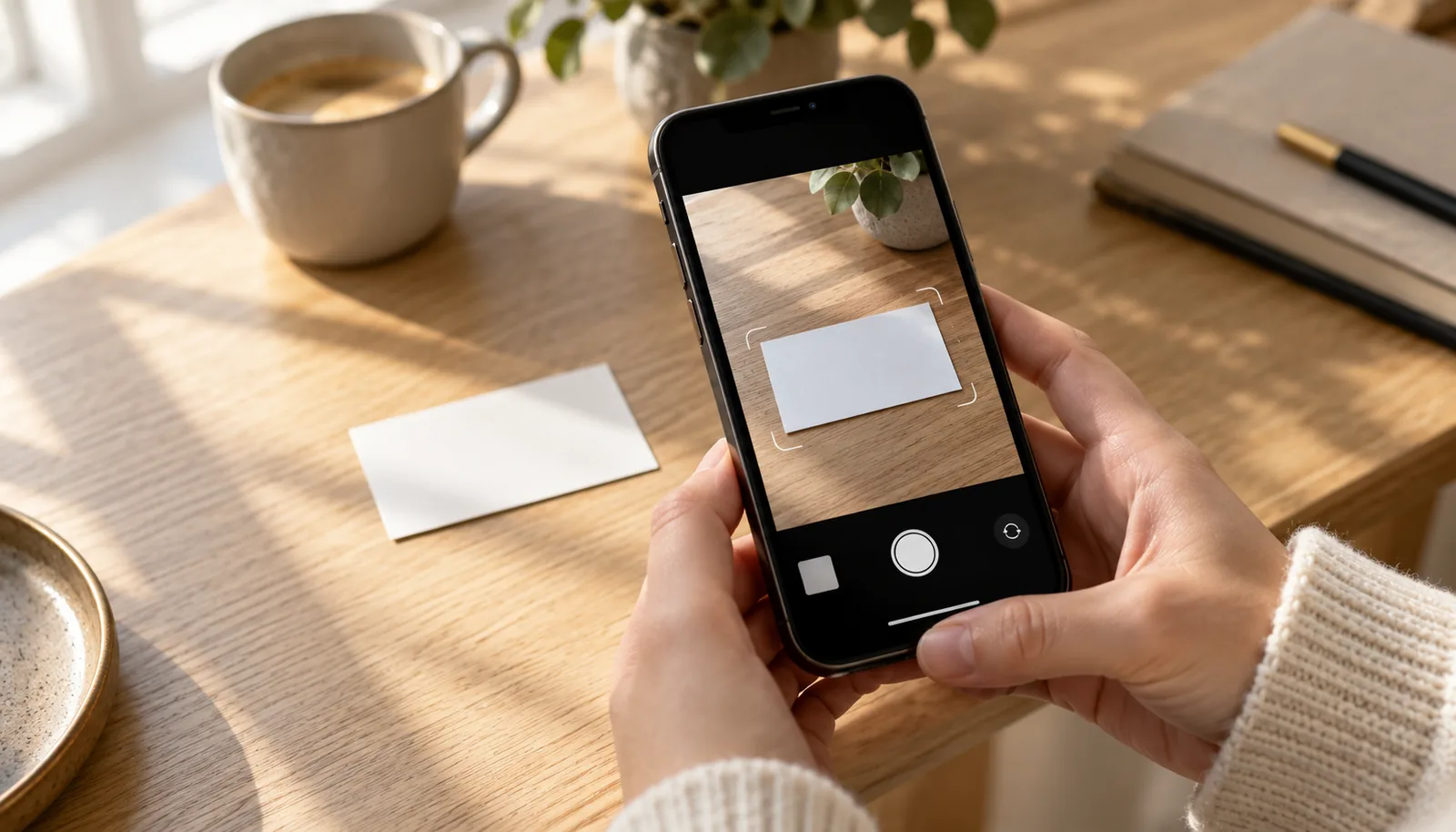
Open Camera, frame the card, wait for the yellow frame, then tap the Live Text control. You can copy text, look it up, translate it, or use quick actions such as a call or email when the content supports them (iPhone User Guide).
In Photos, open a picture of a card, tap Live Text, then tap a phone number or email. Depending on the image, you might see Add to Contacts (Copy and translate text from photos). Live Text needs an iPhone XS, iPhone XR, or later with iOS 15 or later, and it is not available in every region or language.
That path is honest and useful. It still leaves name, title, company, and extra numbers for you to finish in Contacts (Contacts guide).
Notes or Files document scan
In Notes, use Scan Documents to capture the card into a note, usually as a PDF image. In Files, the same idea saves a document to a folder (How to scan documents). Good for an archive. Not the same as a contact you can search by company next month.
A dedicated business card scanner
A scanner app is built around the card as a contact job: capture or import, map fields, let you review, then save to a library and often to Apple Contacts. Features differ by app. Where this piece mentions Carte, it sticks to facts from the current App Store listing (version 2.1).

Scenario A: One card over lunch
Someone slides a card across the table. You have two minutes and decent light.
Prefer Apple’s tools. Point Camera or open a photo, use Live Text, tap the number or email, choose Add to Contacts if it appears, then type the name and company. If you only need the number tonight, you may not even open Contacts until later.
This is where buying an app can feel like overkill. Live Text is free, already on the phone, and fine when volume is low. Tedious only starts when you repeat that field-by-field finish ten times in a row.
Scenario B: A conference stack

End of day: cards in a pocket, one bent, one already smudged, and you still owe three introductions.
Prefer a dedicated scanner when volume, context, or follow-up matters. Built-ins still work, but each card is another photo, another tap, another manual finish. Easy to promise yourself you will “sort it tomorrow,” then lose who asked for what.
A scanner aimed at this job usually lets you capture a stack, review in a batch, keep a note about where you met, and set a follow-up reminder. Offline venues are common; a queue that waits for signal helps more than repeating Live Text under bad Wi‑Fi. Export to CSV or vCard matters if the contacts also need to leave the phone.
If that sounds like your week, skip another how-to lecture and look at the decision checklist below, or browse CamCard alternatives for iPhone when you want options side by side. Once the cards are in your pocket, the after-conference checklist is a simple order for the night you get home, the next two days, and the end of the week.
Scenario C: A multilingual event
Names arrive in scripts you do not type every day. The card is clear; your keyboard is not.
Live Text can still help you copy or translate text, and Apple documents translation among Live Text actions (Camera Live Text guide). Finishing a clean Contacts record by hand is slower here, and typos stick.
A dedicated scanner that lets you review fields before saving, and keep the original card details while converting names and other fields into Latin letters (you review both versions and choose what to save), reduces retyping. Recognition still varies with language, layout, and photo quality. No tool is magic; review stays part of the job.
Side-by-side
| Job | Live Text + Contacts | Notes / Files scan | Dedicated scanner |
|---|---|---|---|
| One lunch card | Often enough | Image archive only | Optional |
| Full contact in one pass | No; field actions + typing | No | Designed for it |
| Conference stack | Tedious | Many images, no contacts | Stack capture + batch review |
| Meeting note + reminder | Manual, elsewhere | In the note | Beside the contact |
| Multilingual names | Copy / translate; manual finish | Image only | Review + script/Latin toggle (app-dependent) |
| CSV / vCard export | Share contact / manual | No | Common in scanner apps |
Decision checklist
Stay with Live Text (and Contacts) if most of these are true:
- You scan rarely, often one card at a time
- You are fine finishing name and company yourself
- You do not need event notes or reminders beside the person
- You do not need a spreadsheet or vCard dump afterward
Lean toward a dedicated scanner if most of these are true:
- You leave events with a stack
- You care about where you met and what you promised
- You need batch review, offline queue, or export
- Names or layouts make retyping painful
Still learning the Apple path? Use the how-to scan a business card on iPhone guide first. Ready to try Carte? Start on the Carte home page or get it on the App Store.
About Carte
Carte is a business card scanner for iPhone (version 2.1, requires iOS 17.0 or later). It can scan one card or a stack, queue offline captures, save reviewed contacts to Apple Contacts, and export CSV or vCard. Default reading uses cloud AI (Google Gemini) and needs a connection; offline captures queue until you're back online. Optional on-device reading with Apple Intelligence also works offline, but only on iPhones that support Apple Intelligence and have it turned on; the setting appears only when that path is available, and Carte does not quietly fall back to cloud. You can keep the original card details and convert names and other fields into Latin letters, then review both versions and choose what to save or share. No Carte account is required. Optional iCloud sync is available.
Your first five scans are free. Carte Premium unlocks unlimited scans and up to ten QR cards, at $3.99 per month, $29.99 per year, or $39.99 one-time on the US App Store as of 2026-11-08. Confirm live prices on the App Store listing.
FAQ
Is there a built-in iPhone business card scanner?
No dedicated feature by that name. Live Text reads text and can offer actions such as call, email, or Add to Contacts for a detected number or email. Notes and Files scan documents. Apple does not document a one-pass “whole card into Contacts” product.
Live Text vs a scanner app: which is better?
Neither is always better. Live Text wins for a single card and low effort. A scanner app wins when volume, context, follow-up, or export matter. Match the tool to the scenario above.
Can Live Text create a full contact automatically?
Not as Apple documents it. You act on detected text. Name, title, company, and remaining fields are still yours to complete in Contacts (Apple Support).
When should I download a business card scanner?
When stacks, multilingual cards, meeting notes, reminders, or CSV/vCard export show up more than once in your month. If that is rare, stay with Apple’s tools.
What about Google Lens or Adobe Scan on iPhone?
They can help with document or text capture, but they are not the same job as a contact-first card workflow, and feature sets change. This piece stays with Apple’s built-ins versus a dedicated business card scanner. For app shortlists, see CamCard alternatives for iPhone.
Sources
- Apple Support: Copy and translate text from photos on your iPhone or iPad (accessed 2026-11-02)
- Apple: Use Live Text with your iPhone camera (accessed 2026-11-02)
- Apple Support: How to scan documents on your iPhone or iPad (accessed 2026-11-02)
- Apple: Add and use contact information on iPhone (accessed 2026-11-02)
- Carte home (accessed 2026-11-02)
- Carte on the App Store (accessed 2026-11-08)
- Apple Support: How to get Apple Intelligence (accessed 2026-11-08)